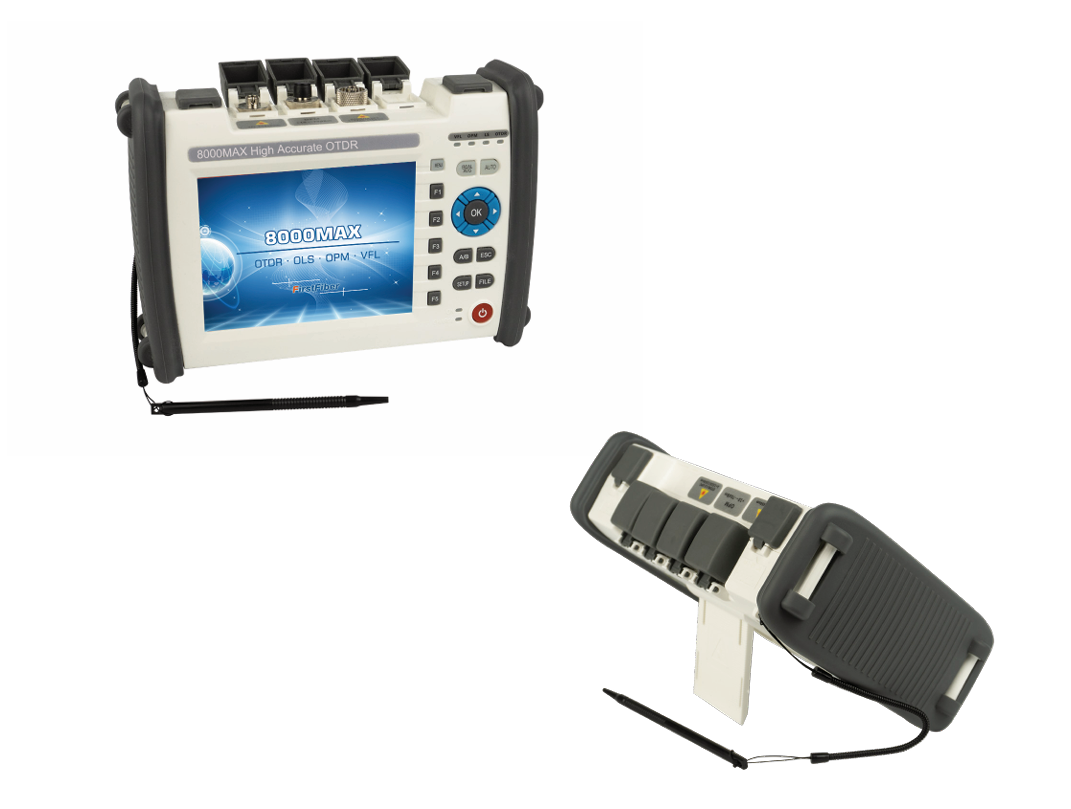
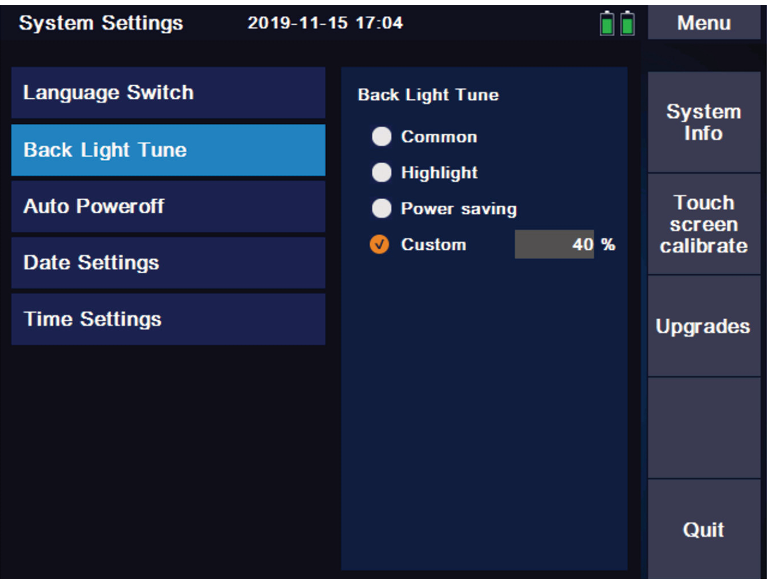
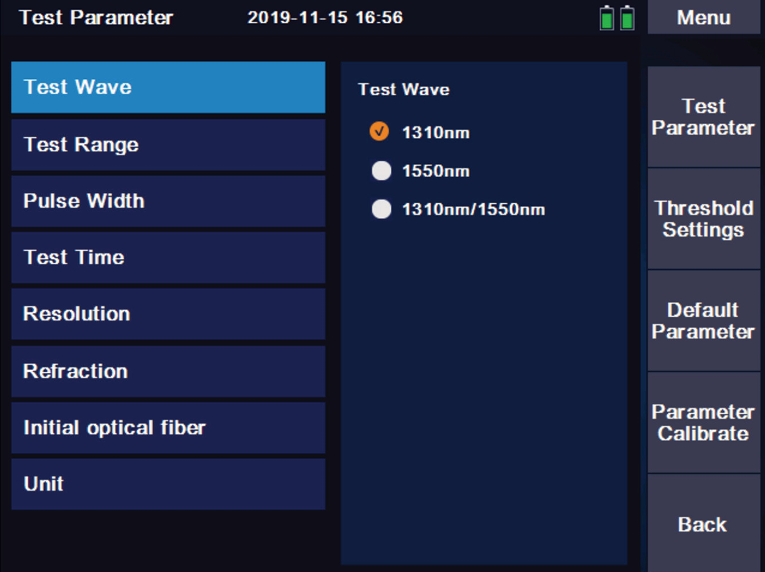
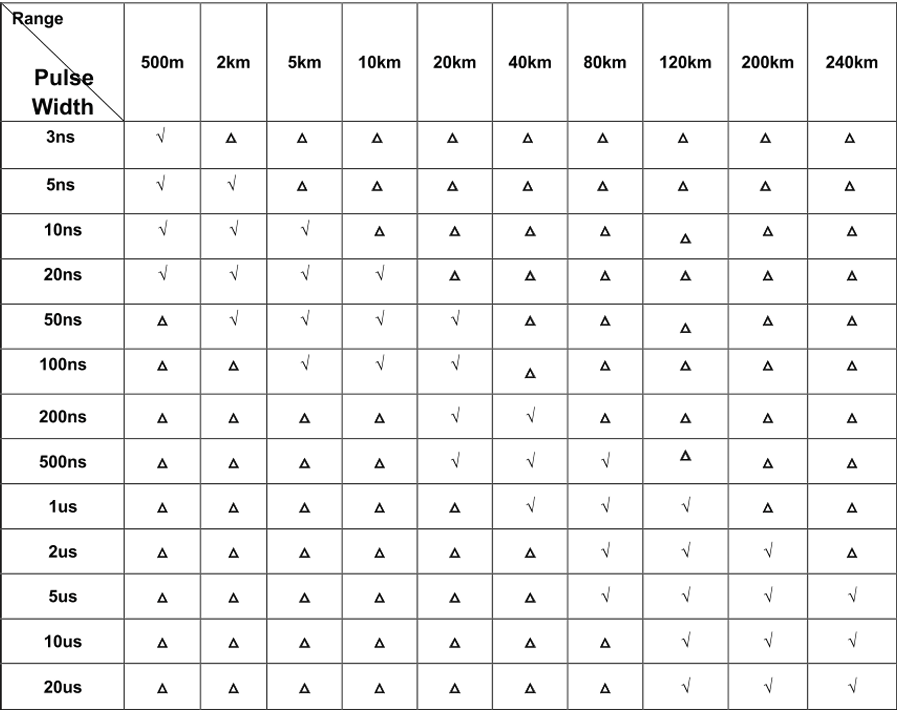
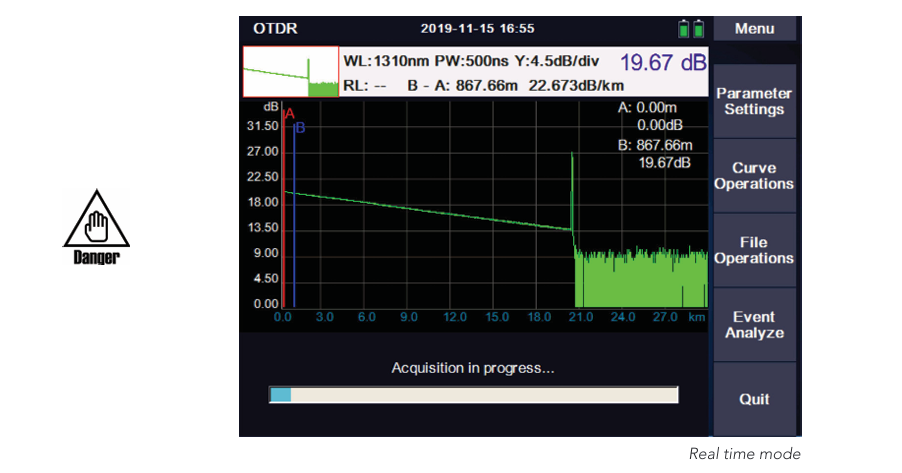
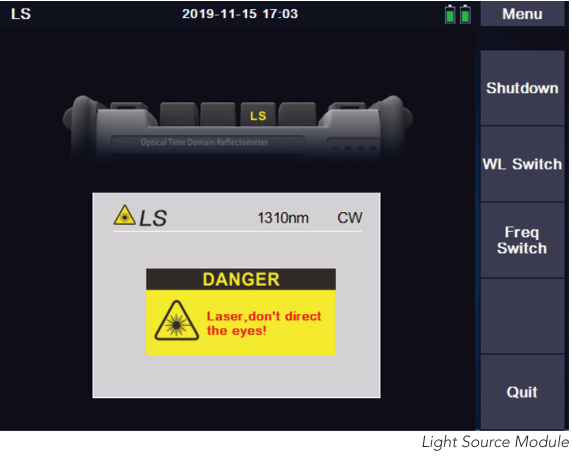
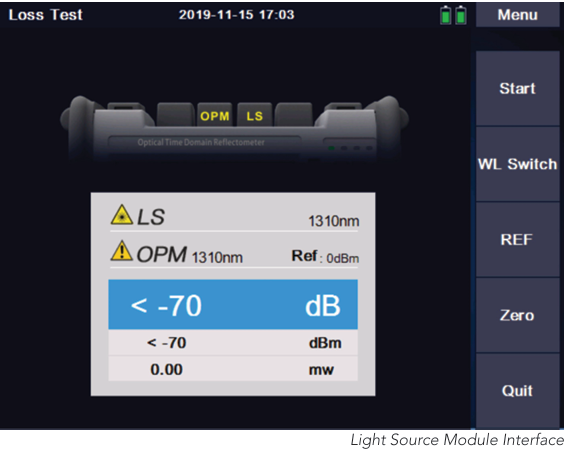
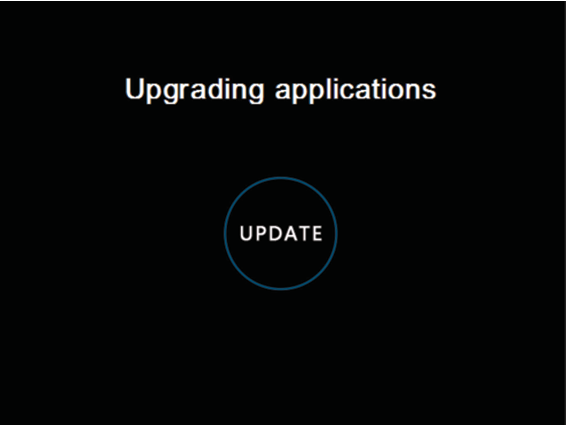
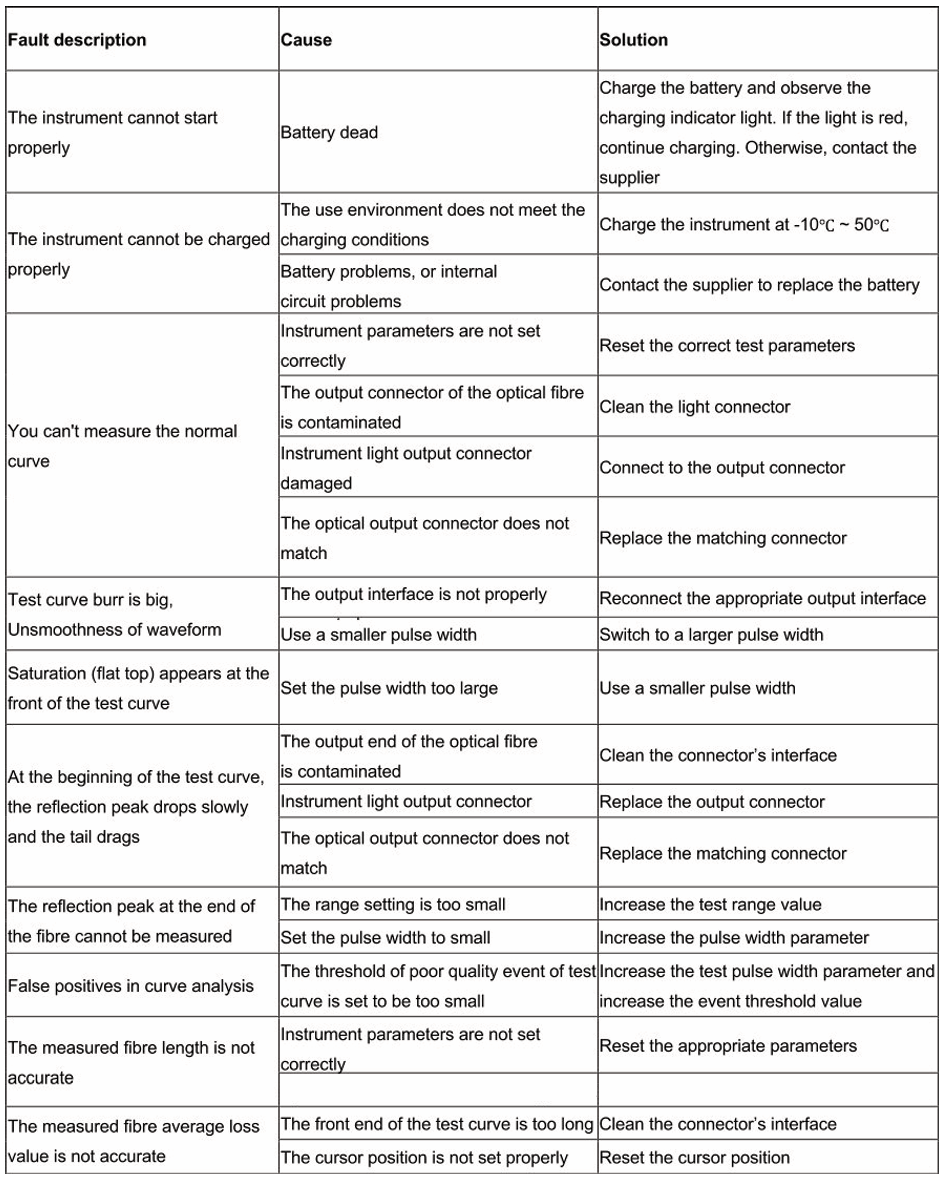
Safety Warning Power Adaptor Input: Output: AC 100V ~ 240V, 50/60Hz; @1.6A DC 12V, 3A ~ 4A Use the power adaptor in strict accordance with the specifications, or it may cause damage to the device Battery Inside the unit is a dedicated lithium battery. For optimal battery performance, first use should be powered by the internal battery. This will be exhausted, therefore, please ensure the first battery charge is no less than 4 hours. The charging temperature range of the battery in the machine is -10oC ~ 50oC. When the ambient temperature is too high, please terminate the charging for your safety. When the unit is idle for more than 2 months, it should be charged in time to maintain the battery power. Do not take out the battery without permission; Please do not leave the battery near a fire source or strong heat; Do not open or damage the battery; The temperature range of battery for long-term storage is -20oC ~ 45oC.
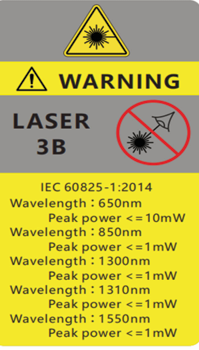
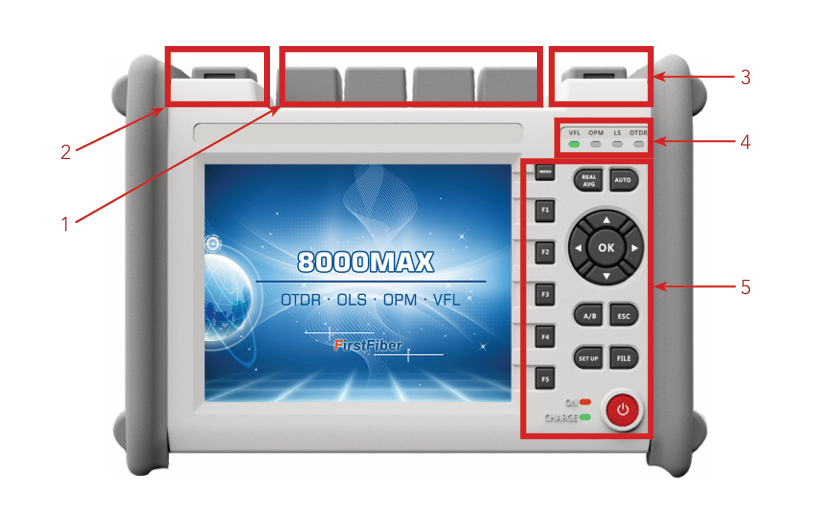
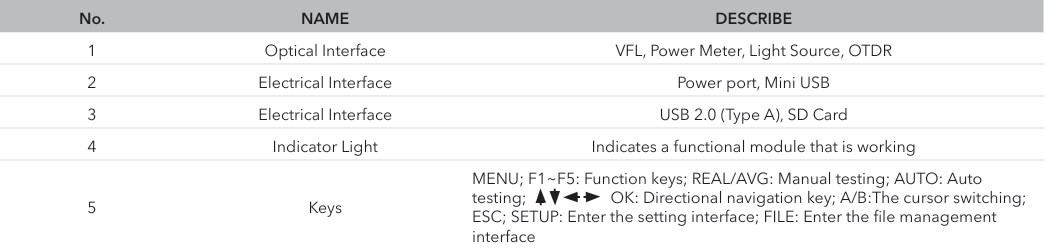
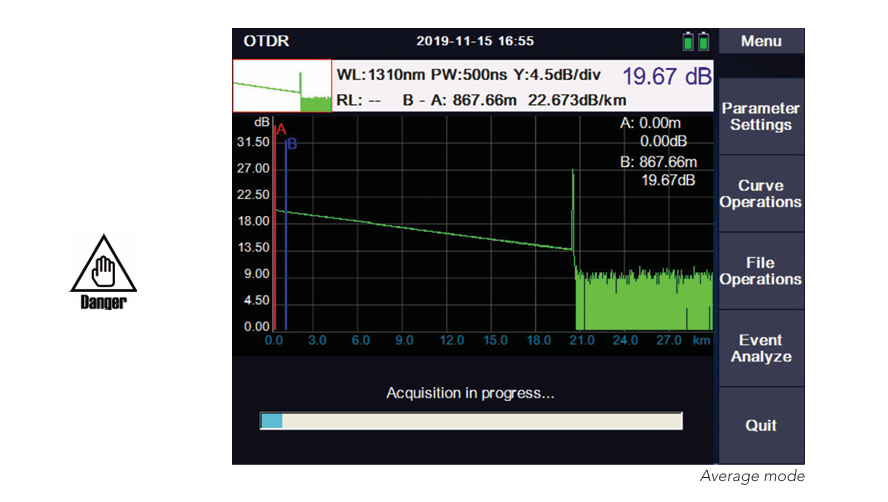
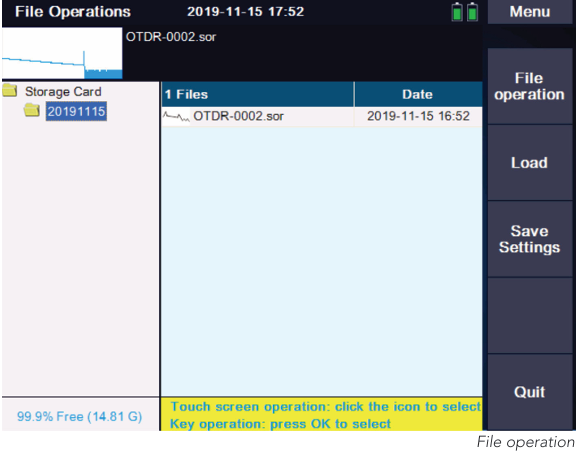
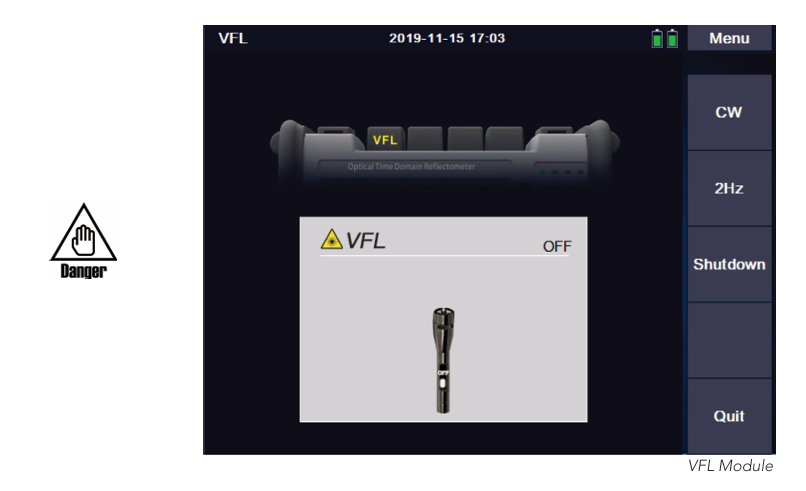
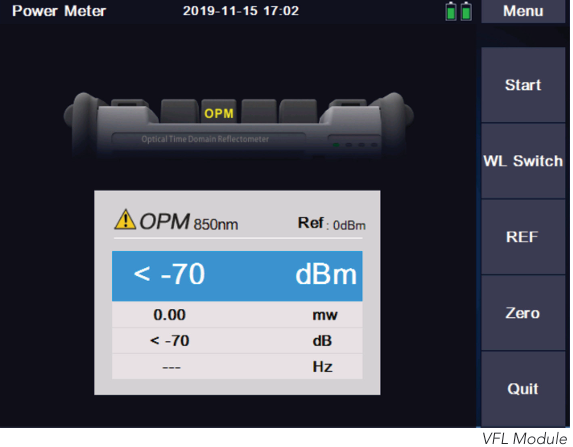
Laser Safety Instructions The laser safety level of this unit is: CLASS III B, being potentially harmful to the human body, when in use, please pay attention to safety. When the visible red light function of the unit is on, please do not look directly at the output port of the red light source or at the end of the optical fibre connected to the red light output end, so as to avoid damage to the eyes. When the unit is no longer in use, please cover the light outlet with a dust cap. Product Features 1. Wavelength Single mode: 1310/1550/1490/1625/1650 Multi mode: 850/1300 2. Measuring range: 120km~240km 3. Touch screen Note: Different models with different configuration 4. Data format: Sor format 5. Integration capabilities: Power meter, Light source, VFL, Insertion loss tester, OTDR, Event map, FDO 6. Keyboard input, edit save file name and line number 7. Supports user upgrade 8. The 5.6-inch TFT screen, 640*480 pixels, is visible in the outdoor sunlight 9. Two 7.4v /2500mAh x2 lithium batteries are used, which can be fully charged for more than 8 hours 10. Unit offers convenient screenshot interface function User Guide The 8000MAX series of the OTDR fibre optical testers offer multifunctional optical measurements, which integrates OTDR, visual fault locator, optical power meter, light source, insertion loss tester and event map. 1.0 System Setting Press [F3] in the interface of main menu to enter the system setting interface, and the following settings can be performed: Language selection Backlight adjustment Automatic shutdown Date Settings Time Setting Touch screen calibrate Upgrades System information (Series no, Unit model, Hardware and software version number) 2.0 OTDR Function Module 2.1 Setting Under the main interface of the metre, press [SETUP] button to quickly enter the setting interface or press [F1] to enter parameter setting on the main interface of OTDR. 2.1.1 Test Parameter Wavelength: 1310nm, 1550nm (Optional: 1625nm, 1650nm online test and 850nm/1300nm multimode) Measuring range: AUTO mode: The device will automatically set the most appropriate parameters for the current measurement, and the measurement range and pulse width selected values cannot be modified at this time. Manual mode: The range and pulse width can be set manually. Pulse Width: Pulse width refers to the time width of emitting optical pulse signal during measurement. The wider the pulse width is, the stronger the optical power injected into the fibre, the stronger the backscattering signal of the f ibre, the further the OTDR can effectively detect. The wide pulse width will cause saturation of the initial reflection signal and could result in large blind areas. Please note, the selection of pulse width is related to the measurement of fibre. The longer the length is, the wider the pulse width. It can only be modified in the automatic measurement mode, which defaults to ‘automatic configuration’ Measuring time: In the mean measurement mode, the longer the detection time is, the better the signal-to-noise ratio, the more accurate the test results are. The user should select the detection time, which is proportional to the dynamic measurement. Resolution: High resolution will have more sampling points and higher accuracy, but it will also increase the amount of data collected. Refractive index: Is the essential characteristics of optical fibre, which will differ between fibre optic manufacturers. The refractive index is the key parameter to calculate the distance, which can not be arbitrarily set. Unit: km/feet/miles OTDR will automatically select the most appropriate reference pulse width when manual measurement range is set in automatic mode. The range and pulse width can be adjusted manually in manual mode. The following list is for reference only: 2.1.2 OTDR Parameter Setting Various event measurement thresholds, including attenuation, reflection, slope, optical fibre end refractive index and scattering coefficient settings. The refractive index is selected by the user, and changing the refractive index setting will change the ranging result. The refractive index is provided by the fibre optic cable or fibre optic manufacturer. Users are advised to calibrate the group refractive index with a known length of fibre and record it. The scattering coefficient is usually obtained from the fibre optic cable manufacturer 2.1.3 Restore to Default Restore to factory default Settings. 2.2 Test Optical Time Domain Reflectometer Press [F1] key on the control panel to enter the measurement interface. Following is the meaning of each label in the measurement interface: Main menu General section operation function menu Parameter Settings Measurement parameter Settings submenu Curve operation Curve manipulation sub-menu, including: cursor, zoom and curve translation File operations File operation submenu, including: open file, save file, multi trace operation and save file Settings. Event analysis Curve analysis sub-menu, including: cursor, curve zoom, event list view, add and delete events More (multi-trace operation and event analysis function description)- Add event: The event list is added accordingly- - - - Delete events: The event list will delete the event accordingly Clear choice: When multi-trace line loads, clear the selected curve and event list Remove other: When multi-trace lines are loaded, clear the list of curves and events other than the selected curve Clear all: Clear all measurement curves and event lists in the current measurement interface REAL TIME MODE: Parameter settings->Test time->Average mode; press [REAL/AVG] key enter the real-time measurement mode. The current circuit is measured in real time, and the measurement parameters cannot be modified in the measurement mode. If the parameters need to be modified, the test needs to be stopped first. Event analysis will not be conducted during the real-time test, and event analysis will only be conducted after the test is stopped AVERAGE MODE Real time mode Parameter settings/Test time/XX seconds; Press [REAL/AVG] key enter the real-time measurement mode. The curve consisting of the average values measured over a period of time can be displayed. The length of time can be edited in the ‘measurement time’ option in [SETUP]. When the measurement is finished, the measurement result will be automatically saved. Under no circumstances shall the optical interface and the end of the tail fibre connected to the optical interface be directed to the eye of the operator or other person. Otherwise, the vision of the operator may be damaged, or even blind 2.3 File Storage Press [FILE] to view and edit stored files The menu provides a complete file storage, call out function. The results of each measurement are automatically saved to internal storage (configurable) and marked with time, date, serial number and other information for easy reference. Users can name, number, comment on each measurement curve, and generate complete reports. 2.4 Computer Software If the user needs to carry out multi-curve comparison or other further analysis functions or remote operation, the measurement data stored in the device after measurement can also be printed by software. 3.0 Other Functional Modules 3.1 VFL Module VFL module has two emission modes: CW MODE: In this mode a continuous stream of visible light is emitted. 2Hz MODE: In this mode, visible light flashes at a frequency of 2Hz. Press [Shutdown], [MENU] or [ESC] to turn off the VFL VFL Module When using the VFL module, do not aim the emitter at the eyes, otherwise it may cause irreversible damage to the eyes. 3.2 OPM Unit: dB, dBm, uW or mW START/STOP Turn on and off power metre function Wavelength switching: Press the “wavelength switch” TAB to switch the current wavelength Set as the reference value: Press the “REF” TAB to set the current value to the power metre reference Clear zero: Press the ‘Zero’ TAB to restore the reference value set Frequency: The power metre has a frequency identification function and can identify 270Hz/1kHz/2kHz.c 3.3 Light Source The light source module and OTDR use the same optical port. OTDR has several wavelengths (except for multi-mode), and the light source has several wavelengths. Start/Shutdown Open and shutdown the light source module WL Switch Press“WL Switch”to change wavelength Frequency switching Press the “frequency switch” TAB to switch the output frequency of the laser: CW/270Hz/1kHz/2kHz Description of function and index of light source: 1.The output power of the laser: -5dBm±2dB2.Function on stable time rate: 3minutes3.Short time stability: 0.05dB4.Long time stability: 0.5dB 3.4 Loss Test Modules (Optional) When the metre is installed with both the stable light source module and the power metre module, the loss test module will be automatically activated. Start/stop: Turn on and off the loss test module WL Switch: Press the ‘WL Switch’ TAB to switch the current wavelength REF: Set the reference value. Zero: Restore the set reference value 4.0 Software Upgrade Firmware updates are made by plugging a USB drive into the USB port (the upgrade software must be in the root directory). Steps: 1. Place the software upgrade package in the root directory of your USB flash drive. 2. Turn on the unit and insert the U disk into the USB port of the unit. 3. The main interface-->System Settings-->Software upgrade 4. After entering the upgrade interface, the upgrade will be completed automatically Note: during the upgrade, please do not cut off the power or unplug the USB drive. These illegal operations may cause system software damage and the metre cannot start normally. Once this happens, you must contact the manufacturer or the authorized after-sales service point of the manufacturer for system repair. 5.0 Instrument Maintenance and Trouble Shooting 5.1 Cleaning of connectors The optical output interface of this series of fibre optic tester is a universal, replaceable interface. In case the tester fails to test the normal curve, or the test result is not accurate, consider cleaning the connector first. When cleaning, be sure to do it when the OTDR function and visual red light fault location function are turned off. Unscrew the output port and wipe the end face with a special clean paper towel or cotton swab moistened with alcohol. At the same time, please cover the dust cap after the use of the unit, and keep it clean. 5.2 Instrument screen cleaning The display of this series of fibre optic comprehensive tester is a 5.6-inch TFT color LCD with touch screen. Do not click the LCD screen with sharp objects when using, otherwise the LCD screen may be damaged: when cleaning, wipe the LCD screen with soft paper. Do not use organic solvent to wipe the LCD screen, otherwise it may cause damage to the LCD screen. 5.3 Calibration It is recommended to calibrate the fibre optic tester every two years. For specific calibration, please contact the unit supplier 6.0 Common Faults and Treatment Methods Note: The above description is for reference only. Please refer to the new instructions for detailed usage. During the use of the unit, if there is any question, please contact with the unit supplier. In the use of the unit, without permission, users are strictly prohibited to dismantle the machine, otherwise will lose the warranty qualification.
Erhalten Sie exklusive Angebote und Neuigkeiten, die Ihren Tag verschönern!
Wir verwenden Cookie, um Ihr Online-Erlebnis zu verbessern. Wenn Sie auf dieser Website weitersurfen, gehen wir davon aus, dass Sie der Verwendung von Cookie zustimmen.